Create a report:
This article assumes you are familiar with the basics of writing custom reports in Spira.
In this example we will be using a custom report with a custom ESQL section.
To create the report you need to:
- Go to Administration > Edit Reports
- Click on Create a new Report (at the bottom of the list of existing Reports)
- Specify that it should allow generation in MS-Word, Excel, HTML and PDF formats
- Choose to add a Custom Section:

1. SQL Query - Program Membership:
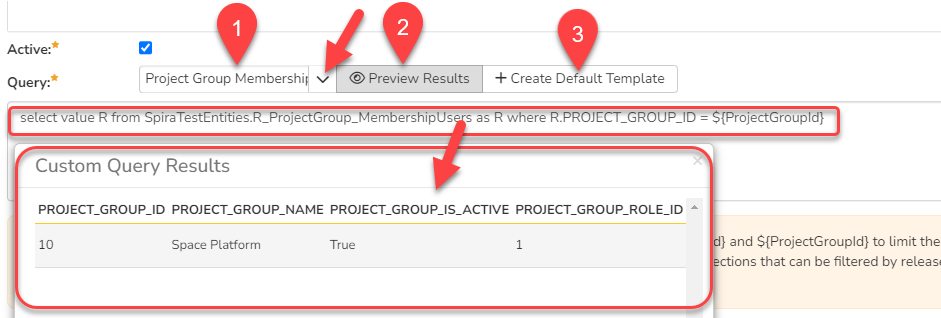
- Choose the Project Group Membership Users from the predefined queries list
- You'll see the automatic query generates the list of Users that are members of current Project_Group or Program and their roles
- Click Preview Results to see the output the R_ProjectGroup_MembershipUsers custom report view for current program:
- This output can be customized to show the list not only programs but also corresponding projects the user is member of, with corresponding program roles. For that insert below ESQL query into the Query field:
SELECT DISTINCT PG.USER_ID, PG.USER_FULLNAME, PG.USER_NAME, PG.PROJECT_GROUP_ROLE_NAME AS PROGRAM_ROLE, PG.PROJECT_GROUP_NAME AS PROGRAM_NAME
FROM SpiraTestEntities.R_ProjectGroup_MembershipUsers AS PG
JOIN SpiraTestEntities.R_ProjectMembership AS PM ON PG.USER_ID=PM.USER_ID
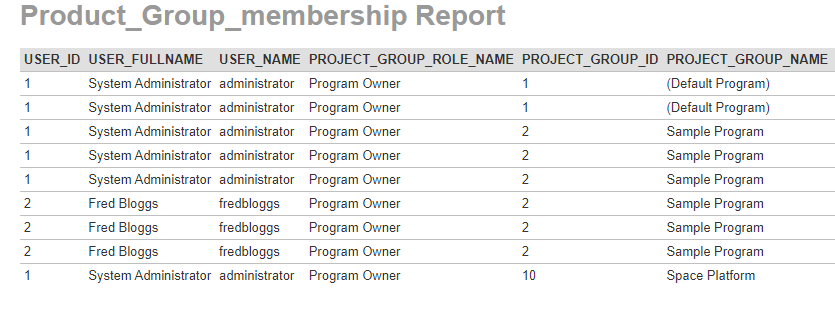
The result will be listing all users in the system that have a program membership with their roles.
- If we add a filtering by program token ${ProjectGroupId} then we will get only users for the currently active program only:
SELECT DISTINCT PG.USER_ID, PG.USER_FULLNAME, PG.USER_NAME, PG.PROJECT_GROUP_ROLE_NAME AS PROGRAM_ROLE, PG.PROJECT_GROUP_NAME AS PROGRAM_NAME, PM.PROJECT_NAME
JOIN SpiraTestEntities.R_ProjectMembership AS PM ON PG.USER_ID=PM.USER_ID
where PG.PROJECT_GROUP_ID = ${ProjectGroupId}
6. Click the 'Create Default Template' option to generate the following XSLT report template or use the generated XSLT template:
<?xml version="1.0" encoding="utf-8"?>
<xsl:stylesheet version="1.0" xmlns:xsl="http://www.w3.org/1999/XSL/Transform" xmlns:msxsl="urn:schemas-microsoft-com:xslt" exclude-result-prefixes="msxsl">
  <xsl:template match="/RESULTS">
    <table class="DataGrid"><tr><th>USER_ID</th><th>USER_FULLNAME</th><th>USER_NAME</th><th>PROGRAM_ROLE</th><th>PROGRAM_NAME</th><th>PROJECT_NAME</th><th>PROJECT_ROLE</th></tr>
      <xsl:for-each select="ROW">
        <tr><td><xsl:value-of select="USER_ID"/></td><td><xsl:value-of select="USER_FULLNAME"/></td><td><xsl:value-of select="USER_NAME"/></td><td><xsl:value-of select="PROGRAM_ROLE"/></td><td><xsl:value-of select="PROGRAM_NAME"/></td>
      </xsl:for-each>
        </table>
    </xsl:template>
</xsl:stylesheet>
7. Save the changes
8. Go to Reporting module to execute the report
Running the report and expected output
And this is what the report should look like:
2. SQL Query - Product and containing Program membership custom report:
Insert below ESQL query into the Query field:
SELECT DISTINCT
       PG.PROJECT_GROUP_NAME AS ProgramName,
       PG.PROJECT_GROUP_ROLE_NAME AS ProgramRole,
       P.NAME AS ProductName,
       R.NAME AS ProductRole,
       U.FIRST_NAME + ' ' + U.LAST_NAME AS FullName,
       U.USER_NAME AS Login,
       U.EMAIL_ADDRESS AS Email,
       CASE WHEN U.IS_ACTIVE = true THEN 'Active' ELSE 'Inactive' END AS UserStatus
FROM SpiraTestEntities.R_ProjectMembership AS PM
LEFT JOIN SpiraTestEntities.R_ProjectGroup_MembershipUsers AS PG ON PM.USER_ID = PG.USER_ID
JOIN SpiraTestEntities.R_Users AS U ON PM.USER_ID = U.USER_ID
JOIN SpiraTestEntities.R_Projects AS P ON PM.PROJECT_ID = P.PROJECT_ID
JOIN SpiraTestEntities.R_ProjectRoles AS R ON PM.PROJECT_ROLE_ID = R.PROJECT_ROLE_ID
WHERE R.ARTIFACT_TYPE_ID = 1
  AND U.IS_ACTIVE = true
A LEFT JOIN ensures that even if a user is not a member of a Program (Project Group), they are still included in the report. If they have no program membership, the ProgramName and ProgramRole columns will simply return as NULL (empty) rather than hiding the user entirely.
You can click on 'Create Default XSLT Template' and this will work fine, otherwise you can use enhanced XSLT formatting (works for HTML only) - just copy and paste below code into corresponding section:
<?xml version="1.0" encoding="utf-8"?>
<xsl:stylesheet version="1.0" xmlns:xsl="http://www.w3.org/1999/XSL/Transform" xmlns:msxsl="urn:schemas-microsoft-com:xslt" exclude-result-prefixes="msxsl">
  <xsl:template match="/RESULTS">
    <style>
      .report-container {
        font-family: -apple-system, BlinkMacSystemFont, "Segoe UI", Roboto, Helvetica, Arial, sans-serif;
        margin: 20px 0;
      }
      .custom-report-table {
        width: auto;
        border-collapse: collapse;
        font-size: 12px;
        box-shadow: 0 4px 6px rgba(0, 0, 0, 0.05);
        border-radius: 8px;
        overflow: hidden;
        border: 1px solid #e2e8f0;
      }
      .custom-report-table th {
        background-color: #1e293b;
        color: #ffffff;
        text-align: left;
        padding: 6px 10px;
        font-weight: 600;
        text-transform: uppercase;
        font-size: 10px;
        letter-spacing: 0.5px;
        white-space: nowrap;
      }
      .custom-report-table tr {
        border-bottom: 1px solid #e2e8f0;
        transition: background-color 0.2s ease;
      }
      .custom-report-table tr:nth-of-type(even) {
        background-color: #f8fafc;
      }
      .custom-report-table tr:hover {
        background-color: #f1f5f9;
      }
      .custom-report-table td {
        padding: 4px 10px;
        color: #334155;
        vertical-align: middle;
        white-space: nowrap;
        line-height: 1.2;
      }
      .product-highlight {
        font-weight: 600;
        color: #0f172a;
      }
      .login-code {
        font-family: "SFMono-Regular", Consolas, "Liberation Mono", Menlo, Courier, monospace;
        background-color: #f1f5f9;
        padding: 2px 5px;
        border-radius: 4px;
        font-size: 11px;
        color: #475569;
      }
      .status-badge {
        display: inline-block;
        padding: 2px 8px;
        border-radius: 12px;
        font-size: 10px;
        font-weight: 700;
        text-transform: uppercase;
        text-align: center;
      }
      .status-active {
        background-color: #d1fae5;
        color: #065f46;
      }
      .status-inactive {
        background-color: #fee2e2;
        color: #991b1b;
      }
      .no-membership {
        background-color: #fef3c7;
        color: #92400e;
        padding: 2px 8px;
        border-radius: 12px;
        font-size: 10px;
        font-weight: 700;
        font-style: italic;
        display: inline-block;
      }
    </style>
    <div class="report-container">
      <table class="custom-report-table">
        <thead>
          <tr>
            <th>Program</th>
            <th>Program Role</th>
            <th>Product Name</th>
            <th>Product Role</th>
            <th>Full Name</th>
            <th>Login</th>
            <th>Email</th>
            <th style="text-align: center;">Status</th>
          </tr>
        </thead>
        <tbody>
          <xsl:for-each select="ROW">
            <tr>
              <td>
                <xsl:choose>
                  <xsl:when test="ProgramName and ProgramName != ''">
                    <span class="product-highlight"><xsl:value-of select="ProgramName"/></span>
                  </xsl:when>
                  <xsl:otherwise>
                    <span class="no-membership">No Program Membership</span>
                  </xsl:otherwise>
                </xsl:choose>
              </td>
              <td>
                <xsl:choose>
                  <xsl:when test="ProgramRole and ProgramRole != ''">
                    <xsl:value-of select="ProgramRole"/>
                  </xsl:when>
                  <xsl:otherwise>
                    <span class="no-membership">—</span>
                  </xsl:otherwise>
                </xsl:choose>
              </td>
              <td class="product-highlight"><xsl:value-of select="ProductName"/></td>
              <td><xsl:value-of select="ProductRole"/></td>
              <td><xsl:value-of select="FullName"/></td>
              <td><span class="login-code"><xsl:value-of select="Login"/></span></td>
              <td><xsl:value-of select="Email"/></td>
              <td style="text-align: center;">
                <xsl:choose>
                  <xsl:when test="UserStatus = 'Active'">
                    <span class="status-badge status-active">Active</span>
                  </xsl:when>
                  <xsl:otherwise>
                    <span class="status-badge status-inactive">Inactive</span>
                  </xsl:otherwise>
                </xsl:choose>
              </td>
            </tr>
          </xsl:for-each>
        </tbody>
      </table>
    </div>
  </xsl:template>
</xsl:stylesheet>
Running the report and expected output
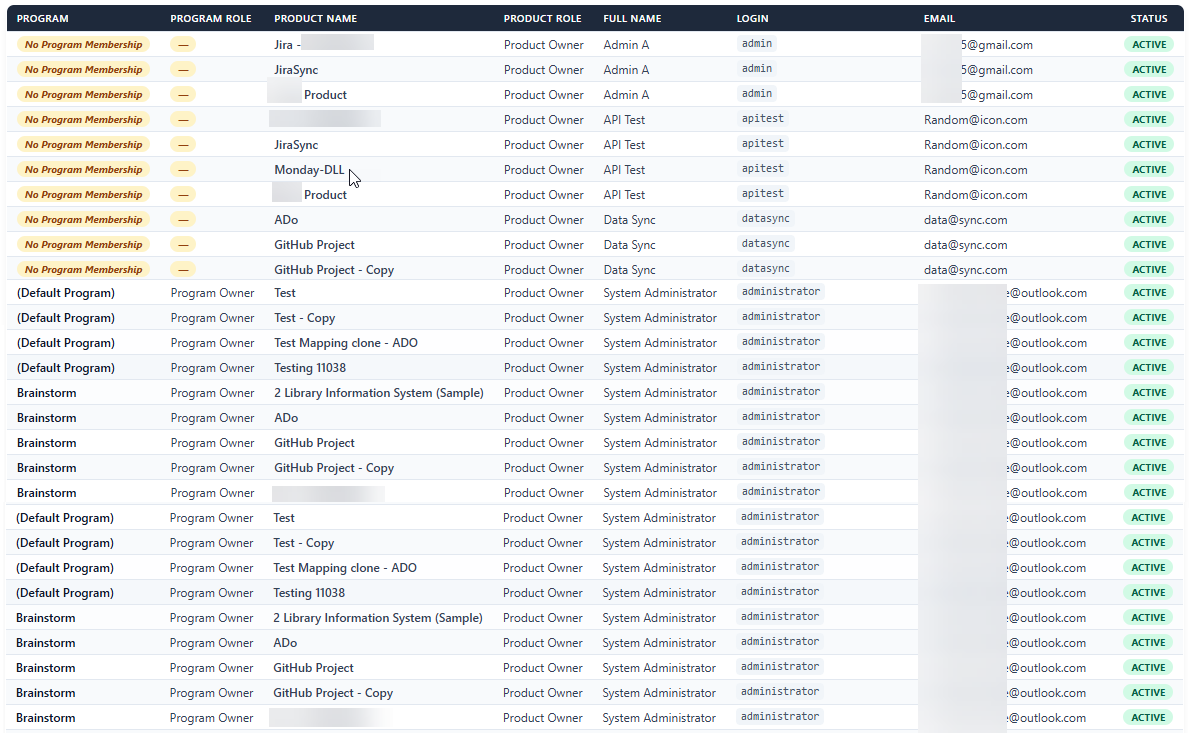
And this is what the report should look like: