Purpose
When users are authenticated via LDAP (Active Directory), their credentials are stored in the LDAP directory.
This tool:
1. Identifies all LDAP-linked users in the Spira database
2. Removes their LDAP connection
3. Generates temporary local passwords
4. Updates the database to use standard authentication
How It Works
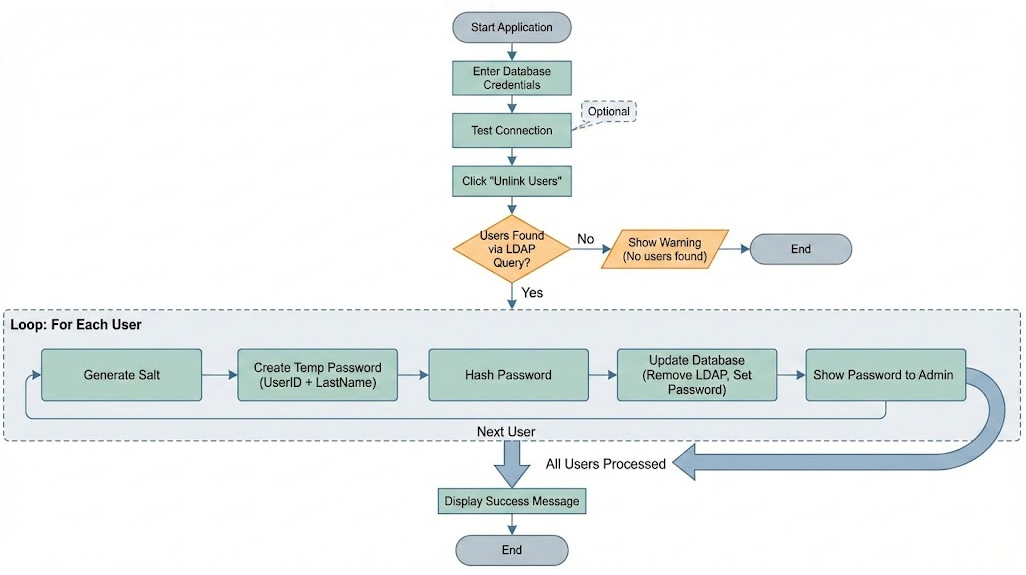
1. Database connection testing
2. LDAP user identification
3. Temporary password generation
4. Password hashing and salting
5. Database record updates
6. Result reporting
Workflow Diagram
Strengths
✅ Passwords are hashed (not plain text)
✅ Unique salt per user
✅ Cryptographically secure salt generation
✅ Password field masked in UI
✅ Failed login counter resetUsage Instructions
Prerequisites
- Windows OS
- .NET Framework 4.6+
- SQL Server access
- Spira database with TST_USER and TST_USER_PROFILE tables
Steps
1. Launch application
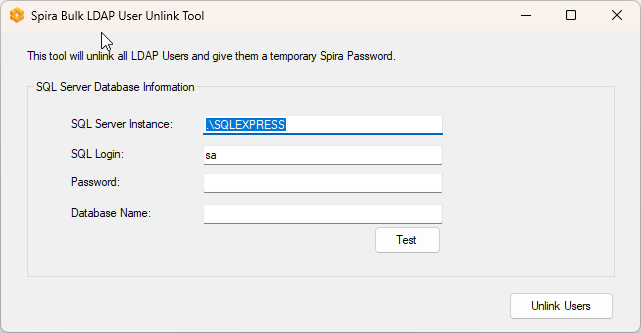
2. Enter SQL Server instance (e.g., `.\SQLEXPRESS` or `server.domain.com`)
3. Enter SQL login credentials
4. Enter Spira database name
5. Click **Test** to verify connection
6. Click **Unlink Users** to execute
7. Note temporary passwords being displayed
8. Inform users of their new credentials
Application UI:
Step-by-Step Process:
Step 1: Connect to Database
Step 2: Query LDAP Users - What it does:
- Finds all users with LDAP_DN set (LDAP-linked users)
- Generates temporary password: `{UserID}{LastName}`
- Example: User ID 5 with last name "Smith" → Password: "5Smith"
Step 3: Process Each User - for each LDAP user found:
a) Generate Password Salt
b) Hash the Password
c) Updates Database:
- `LDAP_DN = NULL` - Removes LDAP link
- `PASSWORD` - Sets new hashed password
- `PASSWORD_SALT` - Stores salt for verification
- `FAILED_PASSWORD_ATTEMPT_COUNT = 0` - Resets lockout counter
Step 4: Display Results
- ✅ Success: "Successfully connected to database"
- ❌ Failure: "Failed to connect to the database - {error}"
- Shows temporary password in message box (for admin to note)
- Displays final count: "Successfully unlinked {count#} users"
- Or warning if no LDAP users found.
Example Execution
Before Execution
User ID: 5
Last Name: Smith
LDAP_DN: CN=jsmith,OU=Users,DC=company,DC=com
PASSWORD: NULL
PASSWORD_SALT: NULL
During Execution
1. **Temporary Password Generated:** `5Smith`
2. **Salt Generated:** `xK8vJ2mQp5fN3hR7tY9wZA==`
3. **Password Hashed:** `aB3dE5fG7hI9jK1lM3nO5pQ7rS9tU1vW3xY5zA==`
After Execution
User ID: 5
Last Name: Smith
LDAP_DN: NULL
PASSWORD: aB3dE5fG7hI9jK1lM3nO5pQ7rS9tU1vW3xY5zA==
PASSWORD_SALT: xK8vJ2mQp5fN3hR7tY9wZA==
FAILED_PASSWORD_ATTEMPT_COUNT: 0
User can now login with:** `5Smith`
Post-Execution
- Users can login with temporary password: `{UserID}{LastName}`
- Recommend forcing password change on first login
- Verify LDAP_DN is NULL for all processed users
Limitations
1. **No Rollback:** Changes are permanent (no undo)
2. **No Backup:** Doesn't backup data before modification
3. **No Logging:** No audit trail of changes
4. **Single Database:** Processes one database at a time
5. **No Filtering:** Unlinks ALL LDAP users (no selective processing)
6. **Password Visibility:** Shows passwords in message boxes
Error Handling
Common Issues:
- Invalid server instance
- Wrong credentials
- Database doesn't exist
- Network connectivity problems
- Permission denied
- Table doesn't exist
- Connection timeout
Troubleshooting
"Failed to connect to the database" error message
- Verify SQL Server is running
- Check instance name
- Confirm credentials
- Test network connectivity
"There were no LDAP Users to Unlink" error message
- Verify LDAP_DN column exists
- Check if users actually have LDAP_DN set
- Confirm correct database selected
"Failed to Unlink the Users" error message
- Check SQL permissions (UPDATE rights needed)
- Verify table structure matches expected schema
- Review error message for specific SQL error