Environment
Symptoms
You are attempting to activate Rapise using a floating license connected to your SpiraTest instance. You may experience the following issues:
Unactivated Client: After walking through the floating license activation steps in Rapise and receiving a "success" message, the Rapise application remains in an unactivated state.
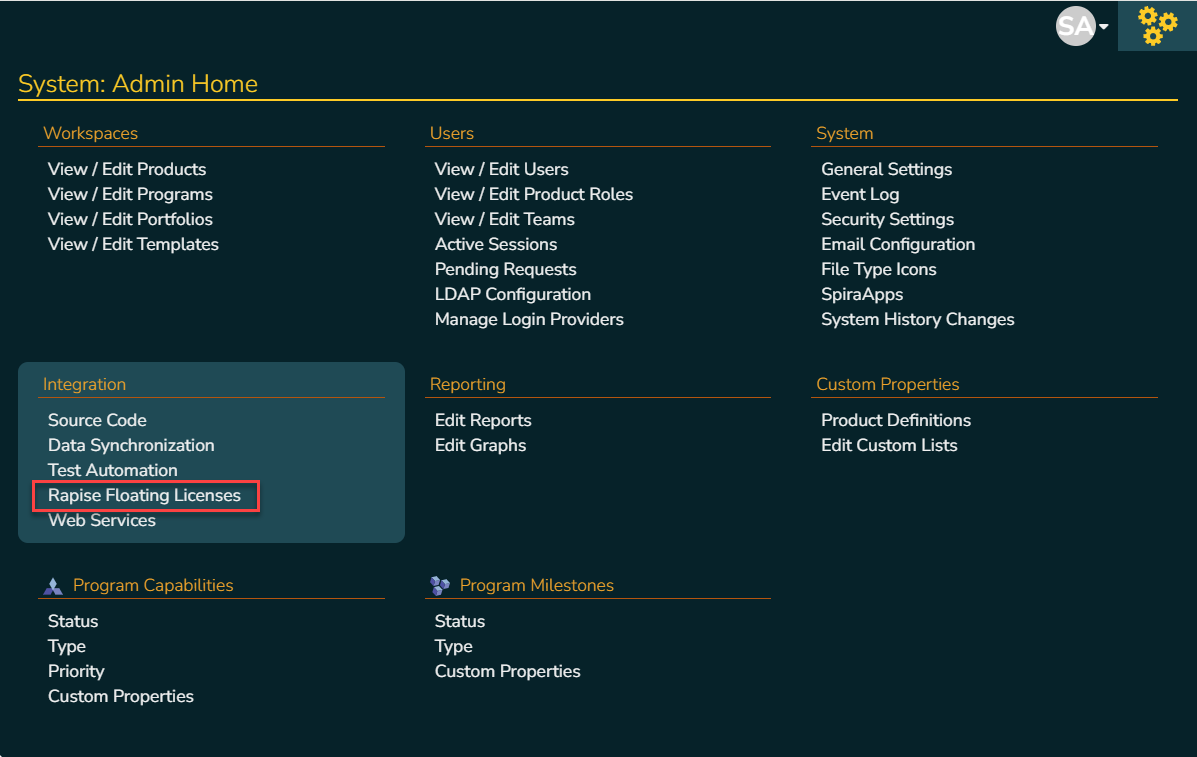
Missing Admin Menu: When navigating to the Administration panel in SpiraTest, the Rapise Floating Licenses menu item is completely missing from the Integration settings menu.
Resolution
To resolve this issue, the server-side state of your SpiraTest instance needs to be manually refreshed by the Inflectra team.
Please follow these steps:
Contact Support: Open a ticket with Inflectra Customer Support via the Inflectra Support Portal.
Provide Details: Include your SpiraTest instance URL and your Account/License information. Mention that your Rapise floating license is missing from the Spira Integration menu and the client will not activate.
Server Refresh: Request that the support team "refresh the server-side state" for your license.
Once Inflectra Support has refreshed the server state, the Rapise Floating License menu item will reappear in your SpiraTest Administration settings, and you will be able to successfully activate your Rapise client.