Overview
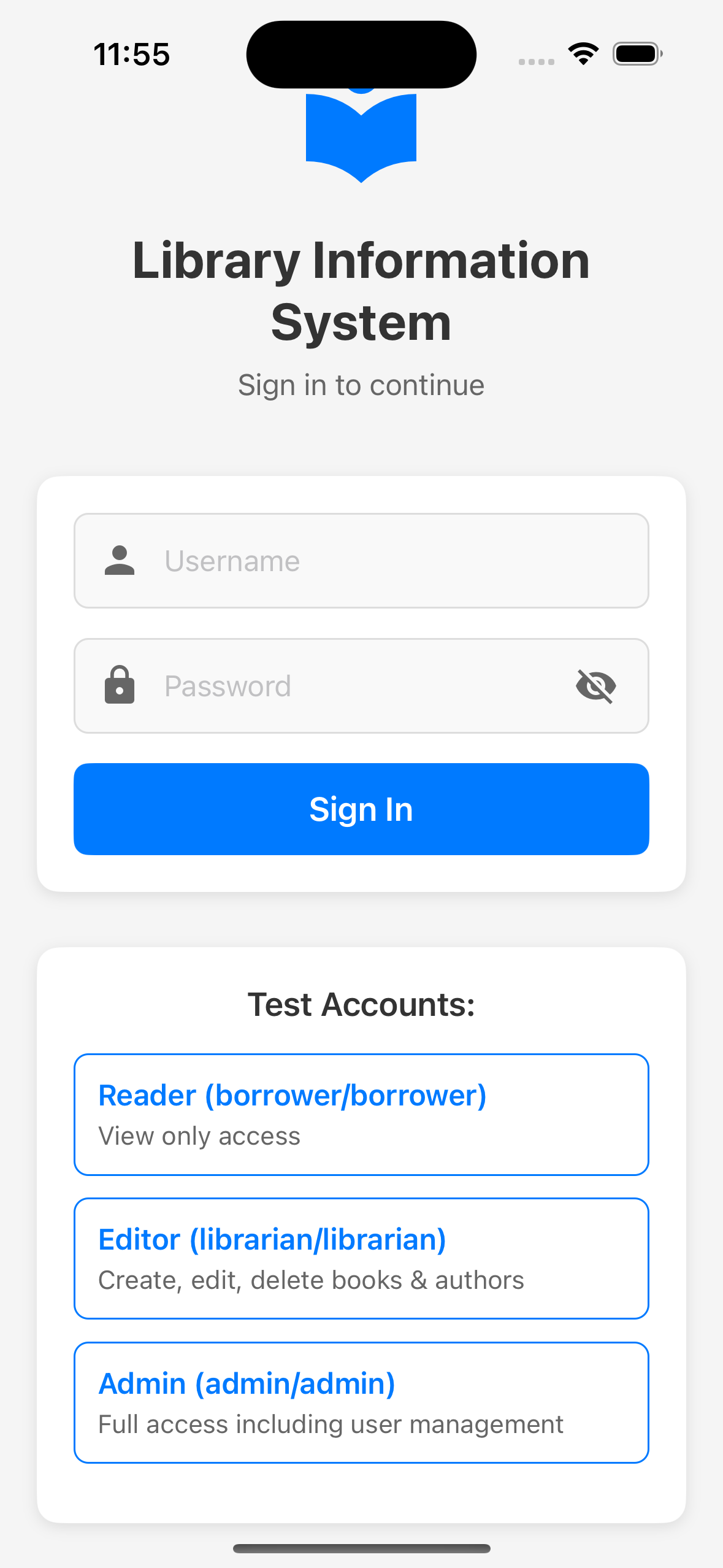
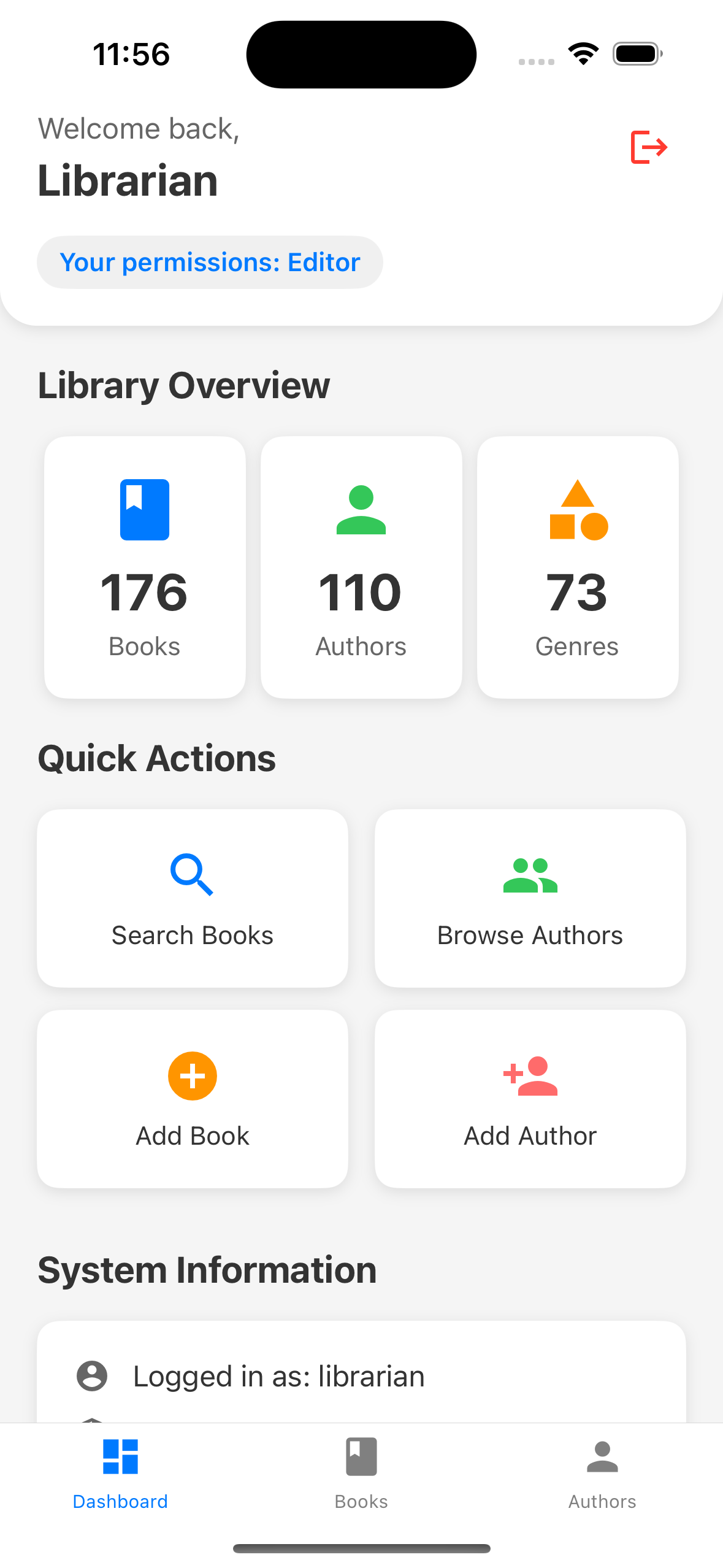
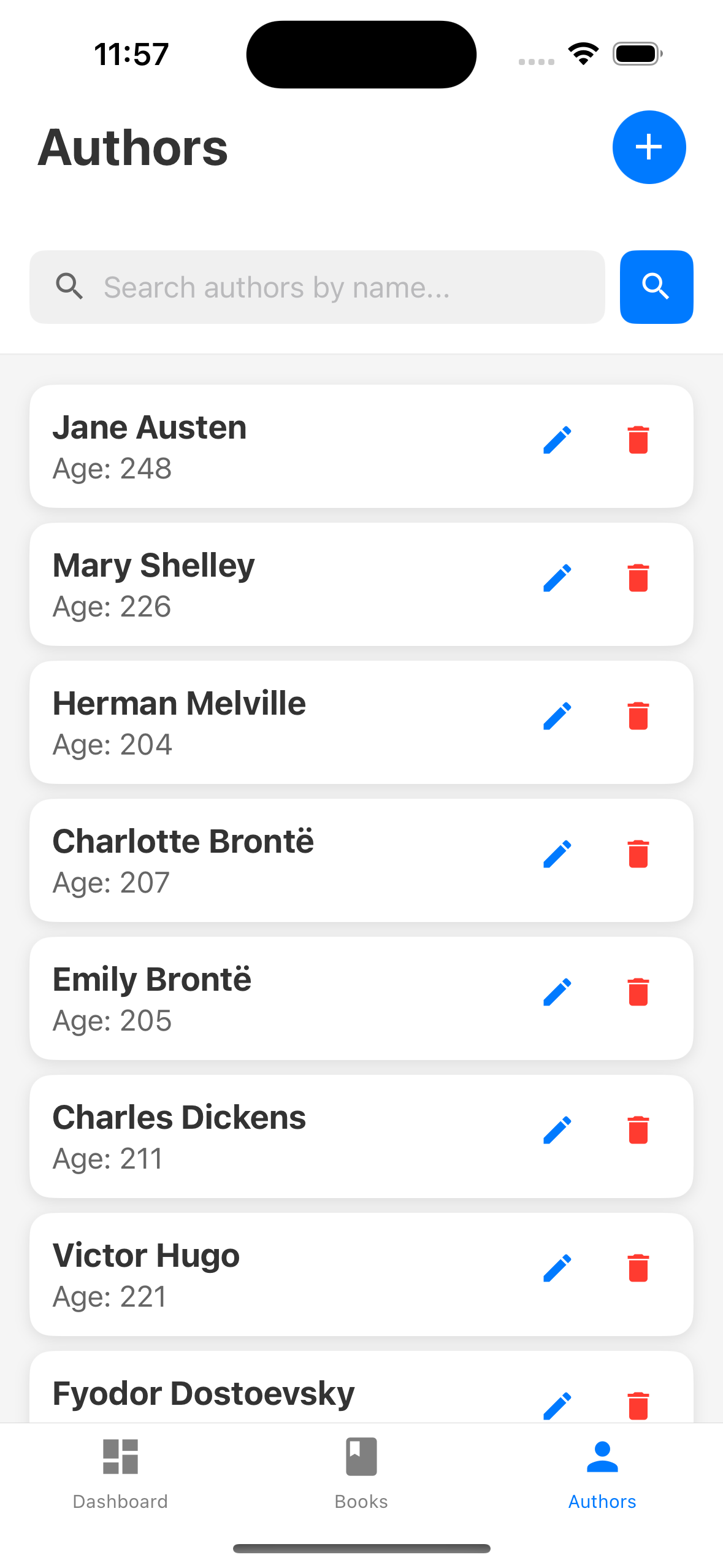
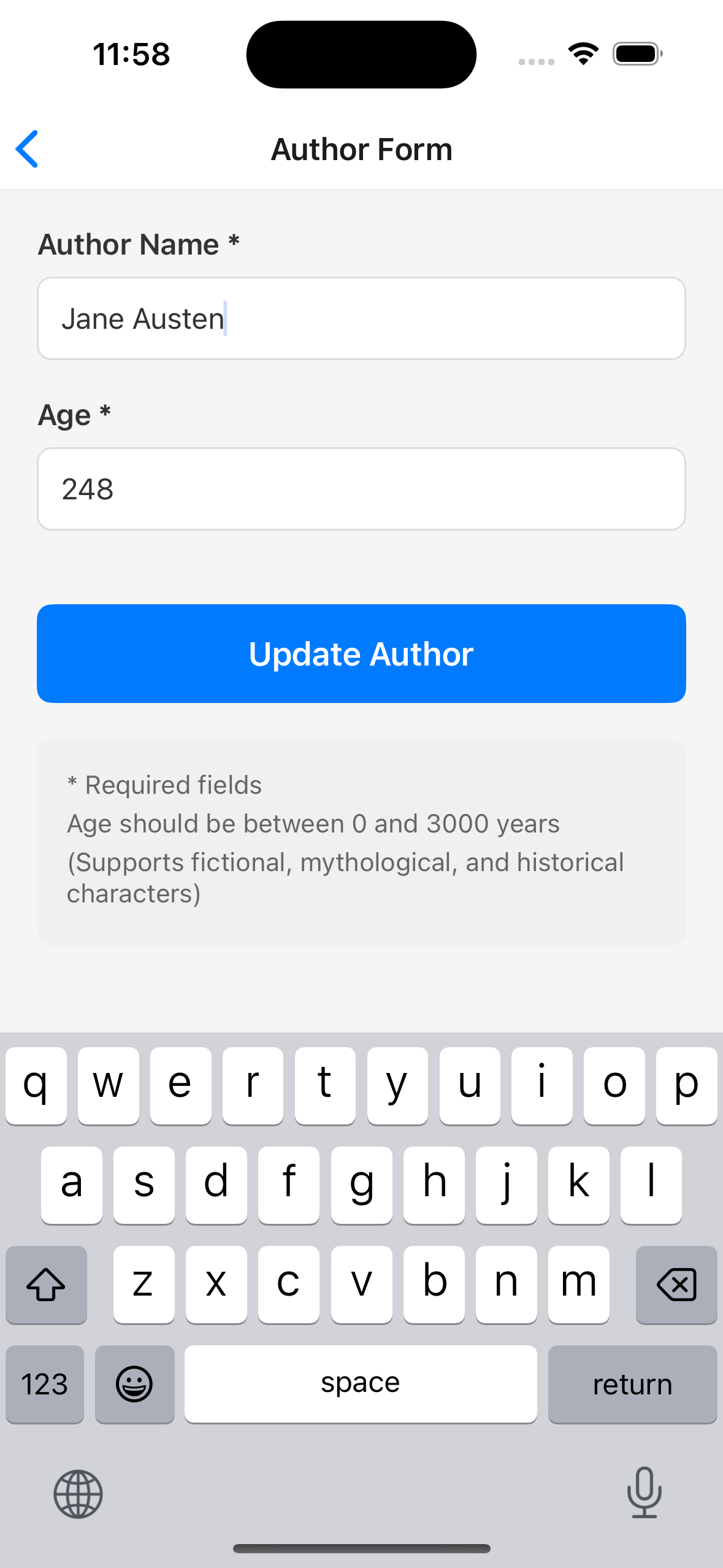
The Library Information System (LIS) is a sample application created by Inflectra to help users learn, practice, and demonstrate mobile UI automation testing. This article provides the iOS version of the LIS demo application. You can use it in conjunction with Rapise to build, execute, and refine your mobile automation scripts.
Download
Attached to this article is the iOS universal simulator build of the application.
File Name: LibraryInformationSystem.app.zip
Type: Universal Simulator Build (iOS .app bundle, zipped)
Prerequisites
To use this sample application for mobile testing, you will need:
Rapise: Installed on your Windows testing machine.
Appium: Running on a macOS machine (or via a cloud device farm) to drive the iOS tests.
Xcode & iOS Simulator: Installed on your Mac environment to host the simulated application.
Installation & Usage Configuration
Because this is a simulator build, it is intended to be run on an Xcode iOS Simulator rather than a physical iPhone or iPad.
Note: There is no need to extract the zip file, as Rapise allows you to specify the app capability directly as a .zip reference.
Download: Download the attached LibraryInformationSystem.app.zip archive and place it on the Mac where your Appium server is hosted.
Update Mobile Profile in Rapise: Open Rapise and navigate to your Mobile Settings. Select your iOS Appium profile.
Set Capabilities: Update the Desired Capabilities to point to the downloaded application archive. You will need to set the app capability to the absolute path of the .zip file on your Mac.
Target a Simulator: Ensure your capabilities specify the correct platform version and device name for the simulator you wish to use (e.g., "appium:deviceName": "iPhone 16").
Start Testing: Launch the Mobile Spy in Rapise and connect to your Appium server. Appium will automatically extract, install, and launch the LIS app on the simulator. You are now ready to learn objects and record your automated test steps!