Overview
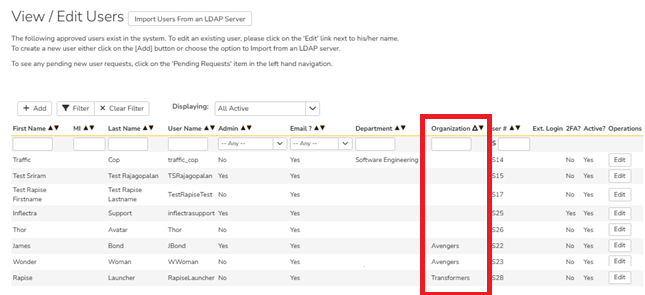
- In general, every artifact has a 'owner' that is associated with a "owner_id" for that artifact. This owner_id is associated with the user_id in the users that also has an "Organization".
- When users are set up, the organization field may be filled or may not be filled. So, the report must be flexible enough to put the users not belonging to any organization in an "unknown" group so that these anomalies can be addressed as part of change management.
Data Setup
Given below is the list of some users with their organizations filled and others without an organization name.
Steps
- Go to the Administration section
- Go to the "Edit Reports" under the system settings
- Add a new report
- Give it a name
- Select the appropriate category (Test Case Reports)
- Click on custom section of the report
- Give it a name (e.g.: Organizational Incidents"
- Insert the ESQL query in the "Query" section
- Preview results for verification
- Click on Create Default Template
- Modify the XSLT with the XSLT provided below into the "Template" section.
- Save the section
- Save the report
ESQL
select
  case when U.ORGANIZATION is null
  Then "Unassigned"
  else U.ORGANIZATION
  end as CLIENT_NAME,
  R.INCIDENT_ID,
  R.NAME,
  R.OWNER_ID,
  R.OWNER_NAME,
  R.INCIDENT_STATUS_NAME,
  R.INCIDENT_TYPE_NAME,
  R.PRIORITY_NAME,
  R.SEVERITY_NAME
from
  SpiraTestEntities6.R_Incidents as R
join
  SpiraTestEntities6.R_Users as U on U.USER_ID = R.OWNER_ID
where
  R.PROJECT_ID = ${ProjectId} and
  R.IS_DELETED = False
order by
  U.ORGANIZATION
ESQL Explanation
- This query joins the incident table with the users table on incident.owner_id = users.user_id. Note that although the names are different on each table, the user id serves as the foreign key on the artifact tables that have the owner_id.
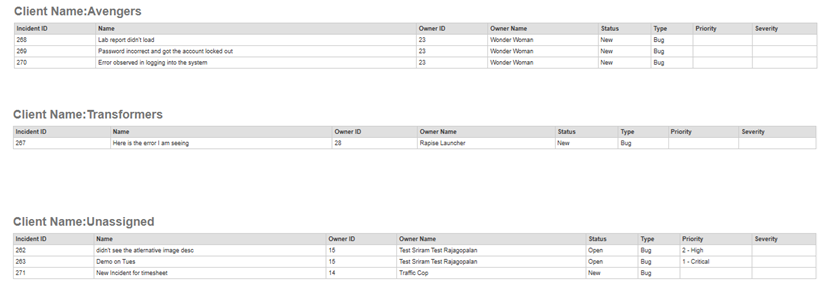
- The case when logic creates the "Unknown" category if the organization name is not filled.
- The incidents deleted are removed from the result using Is_Deleted = False
- The results are sorted by organization name for easier tracking in the report.
XSLT
<?xml version="1.0" encoding="utf-8"?>
<xsl:stylesheet version="1.0"
    xmlns:xsl="http://www.w3.org/1999/XSL/Transform">
    <!-- Group rows by CLIENT_NAME -->
    <xsl:key name="clients" match="ROW" use="CLIENT_NAME"/>
    <xsl:template match="/RESULTS">
        <!-- Iterate unique client names -->
        <xsl:for-each select="
            ROW[
                generate-id()
                =
                generate-id(key('clients', CLIENT_NAME)[1])
            ]">
            <xsl:sort select="CLIENT_NAME"/>

            <!-- Section Heading -->
            <div>
                Client Name:
                <xsl:value-of select="CLIENT_NAME"/>
            </div>

            <table class="DataGrid">
                <tr>
                    <th>Incident ID</th>
                    <th>Name</th>
                    <th>Owner ID</th>
                    <th>Owner Name</th>
                    <th>Status</th>
                    <th>Type</th>
                    <th>Priority</th>
                    <th>Severity</th>
                </tr>
                <!-- All incidents for this client -->
                <xsl:for-each select="key('clients', CLIENT_NAME)">
                    <xsl:sort select="INCIDENT_ID" data-type="number"/>
                    <tr>
                        <td><xsl:value-of select="INCIDENT_ID"/></td>
                        <td><xsl:value-of select="NAME"/></td>
                        <td><xsl:value-of select="OWNER_ID"/></td>
                        <td><xsl:value-of select="OWNER_NAME"/></td>
                        <td><xsl:value-of select="INCIDENT_STATUS_NAME"/></td>
                        <td><xsl:value-of select="INCIDENT_TYPE_NAME"/></td>
                        <td><xsl:value-of select="PRIORITY_NAME"/></td>
                        <td><xsl:value-of select="SEVERITY_NAME"/></td>
                    </tr>
                </xsl:for-each>
            </table>
            <br/>
        </xsl:for-each>
    </xsl:template>
</xsl:stylesheet>
XSLT Explanation
- Create a unique key by the client name to iterate through the list of client names
- Sort the client list by the organization using XSLT sort (This makes it easier to locate the client organizations if there are many)
- For every client, find incidents regardless of the incident status
- Sort the incidents by the incident id using XSLT sort (This makes it easier to locate the incidents if there are too may per organization)
Report Output
Given below is the report of how organizations show up.
Additional Thoughts
- Since we use the word "Unknown" for the users without the organization, it is listed as the last. If you use different name "Not known" or have an organization that follows "Unknown" then give it a different name (e.g. ZZZ - Unknown) so that they appear as the last section.
- If you would like to use the Department instead of the organization, you can do that by changing both the ESQL and XSLT accordingly.
- Additionally, if you want to use department inside the organization, you can bring both the department and organization in the ESQL but add additional logic to handle them (e..g: bring department as a table column and sort by department and then sort by the incident id.