The Challenge: Deep UI Hierarchies
A common question when automating mobile applications is:
"What is the recommended approach for working with elements that have deep UI or complex hierarchies (multiple layers/nested containers) during recording? Identifying and validating the correct object becomes challenging due to the long hierarchy path."
If you attempt to record clicks on deeply nested items (like a specific label inside a card, inside a list view), the framework generates highly specific, long XPath locators. If the UI changes slightly, these locators can break.
The Solution: Root Elements + JavaScript Page Objects
For complex objects, the most robust approach is to transition from raw recorded actions to JavaScript Modules.
Instead of saving every individual button or text field in the object tree, you stick to a single root element (e.g., the main List container) and let custom functions do the heavy lifting. Using the Rapise AI Code Assistant, you do not even need to write the complex traversal logic yourself. You simply provide the AI with the UI structure and let it generate the code.
Here is a step-by-step guide on how to implement an AI-generated helper function to click an item within a complex list.
Step 1: Capture the UI Hierarchy via Mobile Spy
Open the application in the Mobile Spy. Instead of learning individual elements inside the list, locate the parent container (e.g., a ScrollView or main ViewGroup).
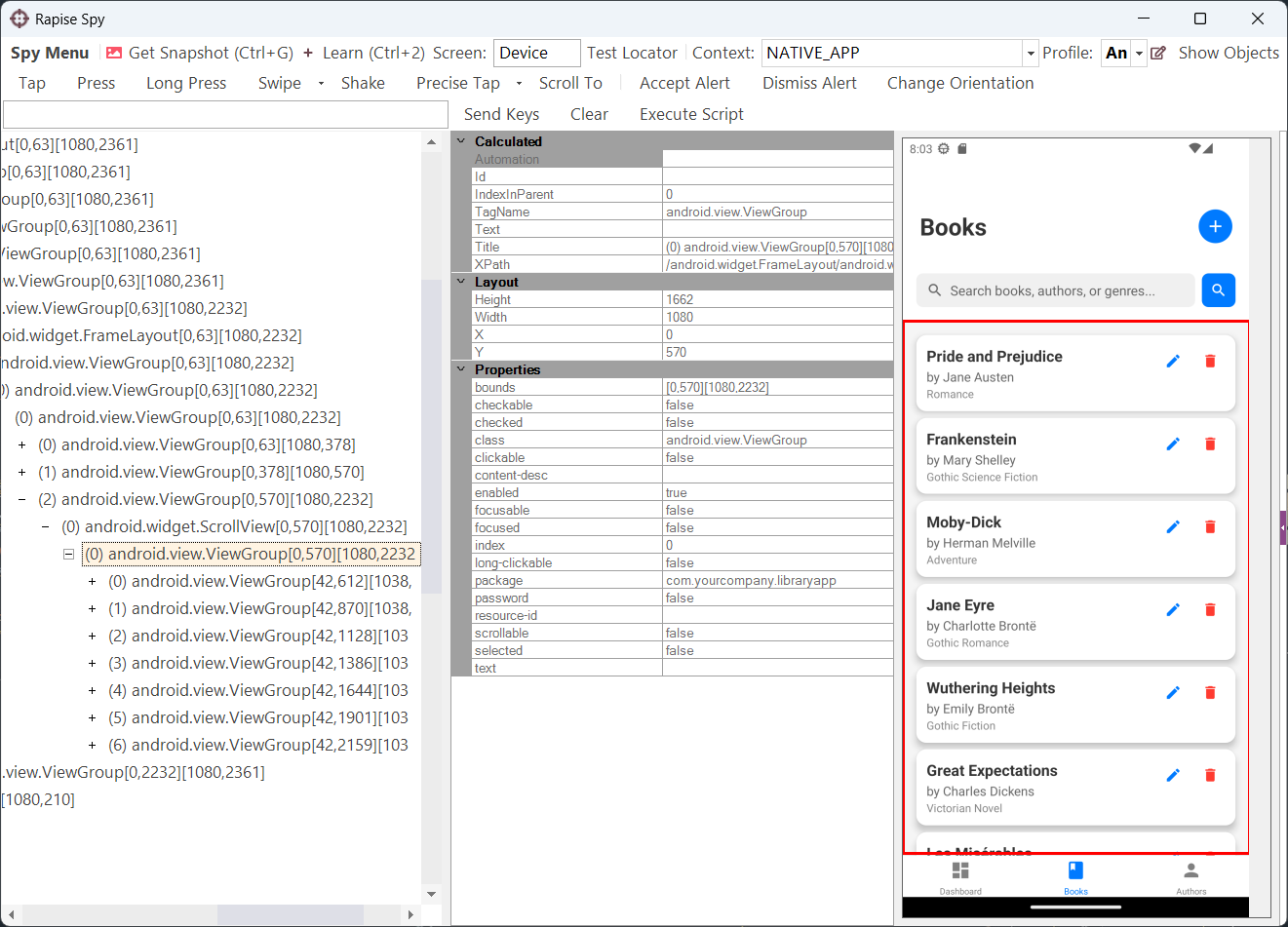
Learn the root element and name it something descriptive (e.g., BookList).
Go to the Spy Menu and select Page Source to view the underlying XML of the screen.
Copy the XML fragment representing your list and its items.
Example of a deep hierarchy fragment (Book list in the Library Information System app):
<android.view.ViewGroup index="2" package="com.yourcompany.libraryapp" class="android.widget.ScrollView">
  <android.view.ViewGroup index="0" bounds="[0,570][1080,2232]">
    <!-- Item 0 -->
    <android.view.ViewGroup index="0" bounds="[42,612][1038,870]">
      <android.view.ViewGroup index="0">
        <android.widget.TextView text="Pride and Prejudice" />
        <android.widget.TextView text="by Jane Austen" />
      </android.view.ViewGroup>
    </android.view.ViewGroup>
    <!-- Item 1 -->
    <android.view.ViewGroup index="1" bounds="[42,870][1038,1127]">
       <android.view.ViewGroup index="0">
        <android.widget.TextView text="Frankenstein" />
      </android.view.ViewGroup>
    </android.view.ViewGroup>
  </android.view.ViewGroup>
</android.view.ViewGroup>
Step 2: Create a Module
In your Rapise project, create a new JavaScript-based Module (e.g., ListHelper).
Define the skeleton of the function you want to create. For example, clicking a specific book based on its index:
/**
 * @PageObject ListHelper description
 */
SeSPageObject("ListHelper");

/**
 * Click item by index
 */
function ListHelper_DoClickItem(**objectId*/ objectId, /**number*/ index)
{
    // Implementation goes here
    return true;
}
Step 3: Prompt the AI Code Assistant
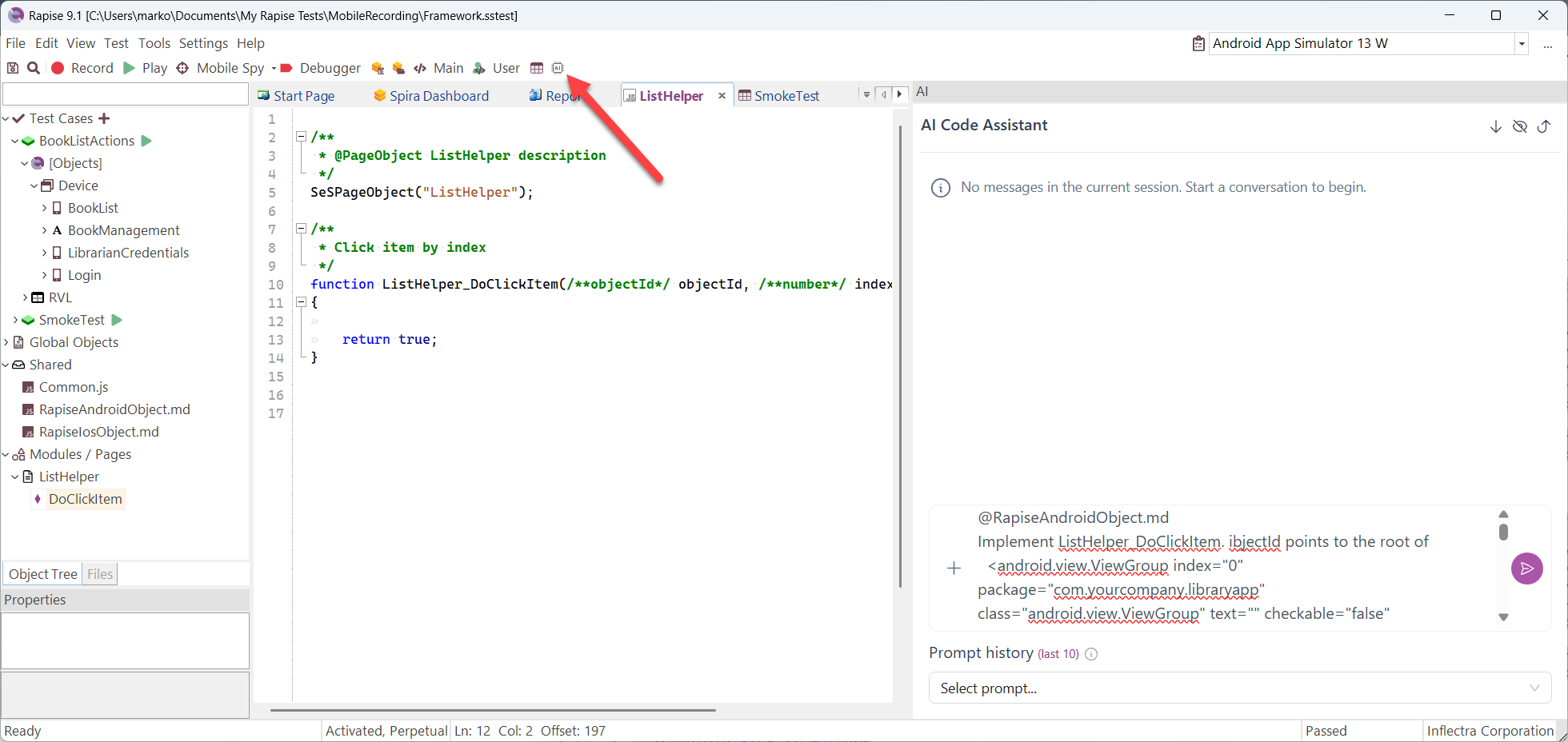
Open the AI Code Assistant panel in Rapise. To get the best code generation, the AI needs two things:
API Knowledge: Contextual knowledge of how Rapise interacts with mobile objects. (Tip: Save the Rapise Mobile API definitions as a Markdown file, e.g., RapiseAndroidObject.md, and add it to the AI's context using @ in the chat window). RapiseIosObject.md and RapiseAndroidObject.md are attached to this KB.
Structural Knowledge: The XML fragment you copied in Step 1.
Example Prompt to the AI:
@RapiseAndroidObject.md
Implement ListHelper_DoClickItem. objectId points to the root of the list container. Navigate the tree to find the child item at the provided index and perform a click on the item's inner container. Here is the structure of the root object:
[Paste your XML fragment here]
Step 4: Review and Apply the Code
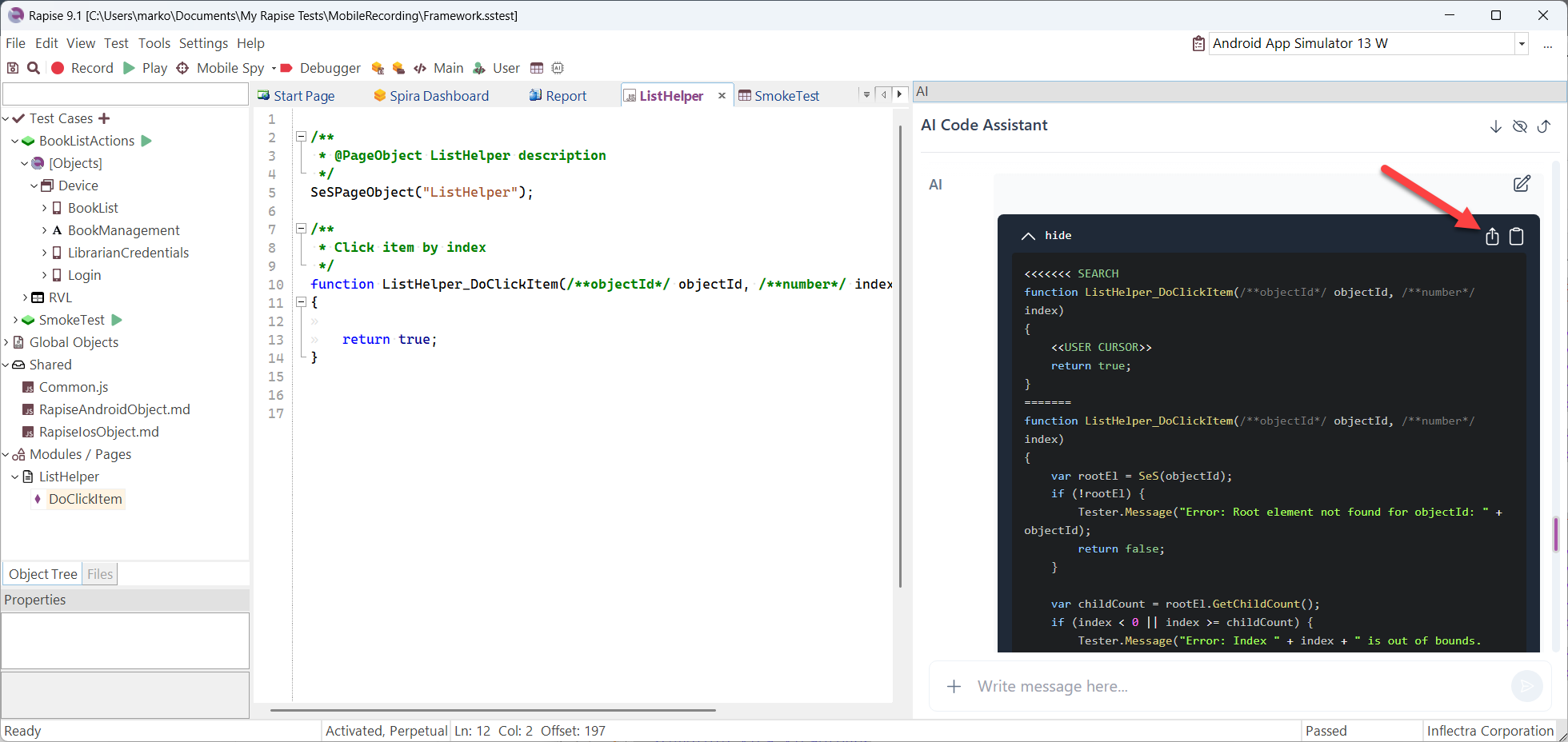
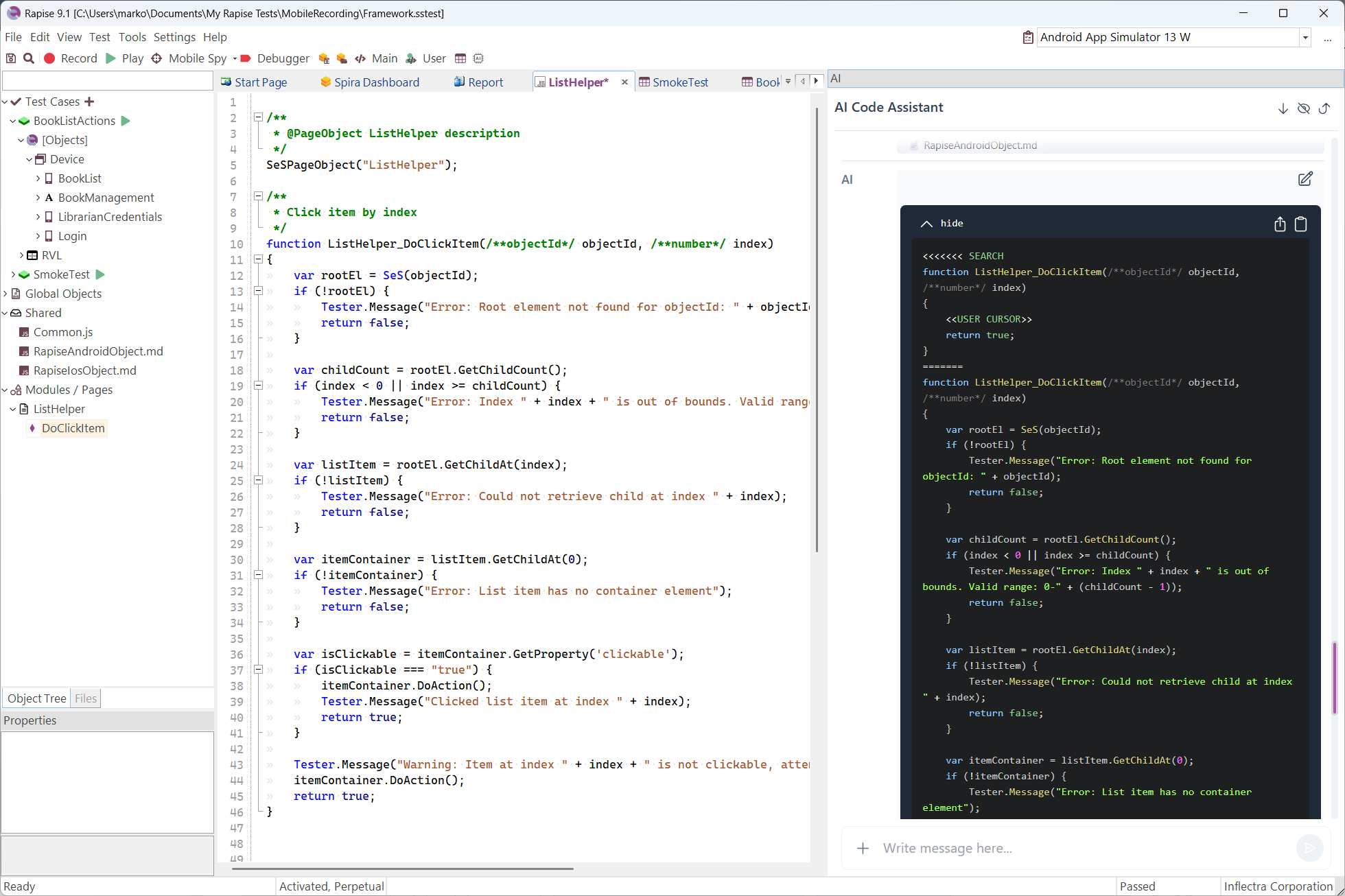
The AI Assistant will generate the JavaScript implementation. Because we provided the API markdown, it will correctly use methods like GetChildCount(), GetChildAt(), and DoAction() instead of generic Mobile DOM code.
Click the Apply / Replace icon at the top right of the AI response block to automatically inject the code into your ListHelper.js file.
Generated Code Example:
function ListHelper_DoClickItem(**objectId*/ objectId, /**number*/ index)
{
    var rootEl = SeS(objectId);
    if (!rootEl) {
        Tester.Message("Error: Root element not found.");
        return false;
    }

    var childCount = rootEl.GetChildCount();
    if (index < 0 || index >= childCount) {
        Tester.Message("Error: Index out of bounds.");
        return false;
    }

    // Traverse down to the specific nested list item
    var listItem = rootEl.GetChildAt(index);
    var itemContainer = listItem.GetChildAt(0); // Entering the inner ViewGroup

    // Execute action in the center of the mobile object
    itemContainer.DoAction();
    Tester.Message("Clicked list item at index " + index);
    return true;
}
Step 5: Execute in RVL
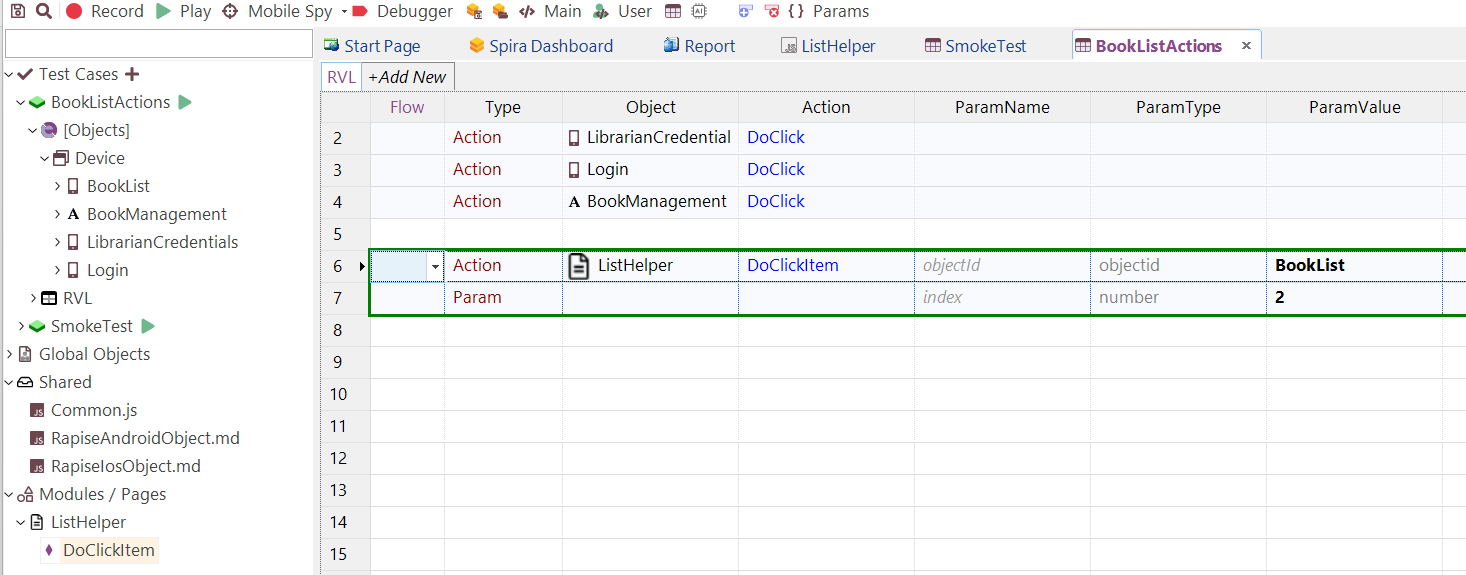
You can now use this robust, AI-generated function directly in the Rapise Visual Language (RVL) spreadsheet.
Create an Action row.
Select your Module: ListHelper.
Select your function: DoClickItem.
Pass the root object name (BookList) as the objectId, and the desired index (e.g., 2) as the index parameter.
Summary
By combining Root Element mapping with Modules and the AI Code Assistant, you eliminate the need to manage dozens of brittle locators. If the developers change the internal structure of the list item, you only need to update the logic in one single JavaScript function, making your framework highly maintainable.
See Also: Making API Context Files Available to the AI Assistant
In the steps above, we used @RapiseAndroidObject.md in the AI chat to provide API context. To make these markdown files easily accessible across your entire test framework, you should add them as shared resources.
Here is how to include RapiseAndroidObject.md and RapiseIosObject.md in your project:
/Support/Attachment/325964.aspx
/Support/Attachment/325965.aspx
Save the Files: Save the API descriptions into markdown files (e.g., RapiseAndroidObject.md) and place them directly in the root folder of your Rapise framework.
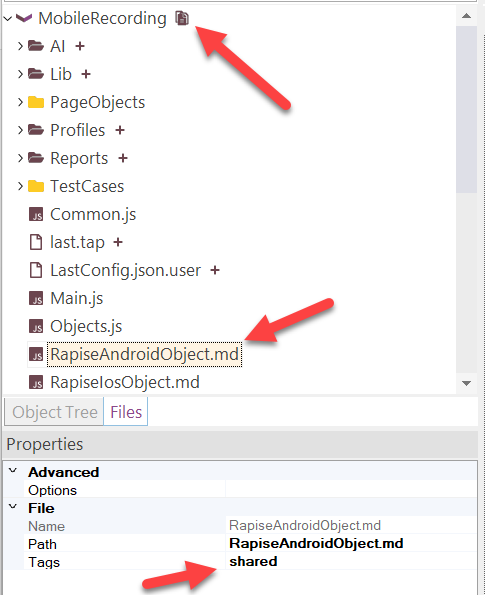
Include in Project: In Rapise, navigate to the Files view (located via the tab at the bottom of the Object Tree pane). Click the Show All Files icon on the toolbar, then click the + (Include in Test) icon next to each .md file name.
Tag as Shared: Still in the Files view, select one of the newly added .md files. In the Properties pane below, locate the Tags property and enter the word shared. Repeat this for any other markdown files.
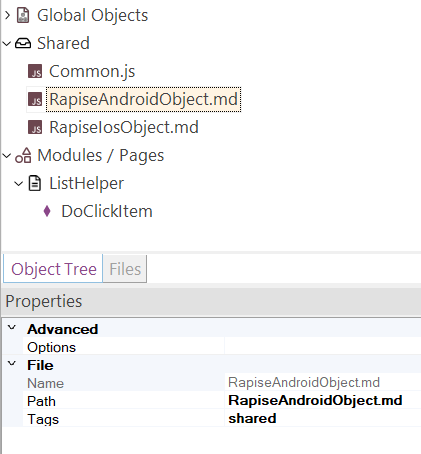
The Result:
Once tagged, switch back to the Object Tree view. You will now see your markdown files neatly organized under the Shared folder node. More importantly, these files are now fully integrated into the framework and can be instantly referenced in the AI Code Assistant by simply typing @ followed by the file name.