When testing mobile applications, you will often encounter scenarios where an element's locator is not static. A common example is needing to click an action button (like "Edit" or "Delete") that corresponds to a specific item in a list (like a book name), where the target item name changes depending on your test data.
Here is a step-by-step guide on how to handle this by dynamically updating the XPath in Rapise.
The Scenario
Imagine a mobile application with a list of books. We want to click the Edit button specifically for the book "Great Expectations", but our recorded object is currently hardcoded to click the edit button for "Pride and Prejudice".
Step 1: Spy and Learn a Template Object
First, use the Mobile Spy to find a reliable relative XPath for a single, static item.
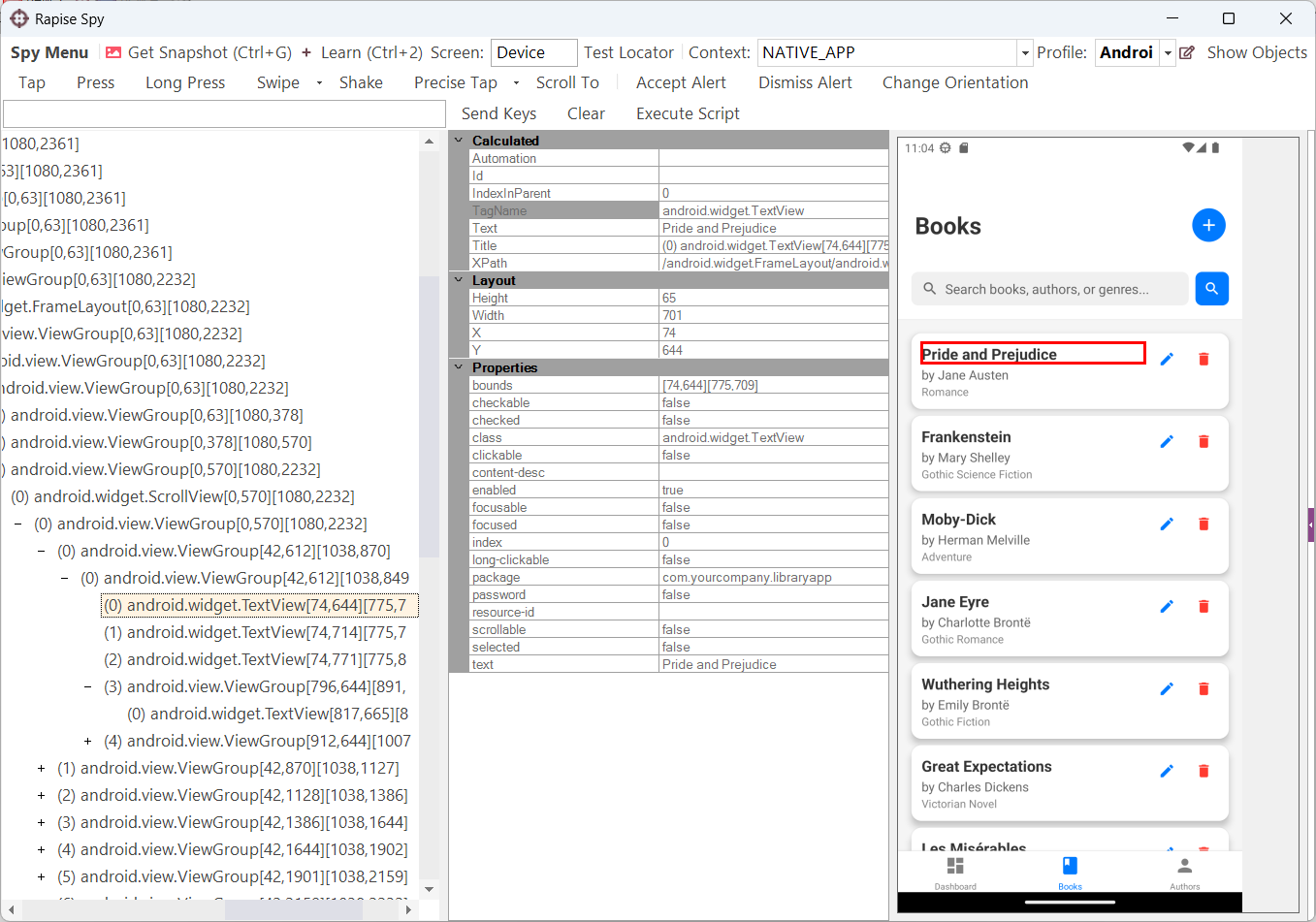
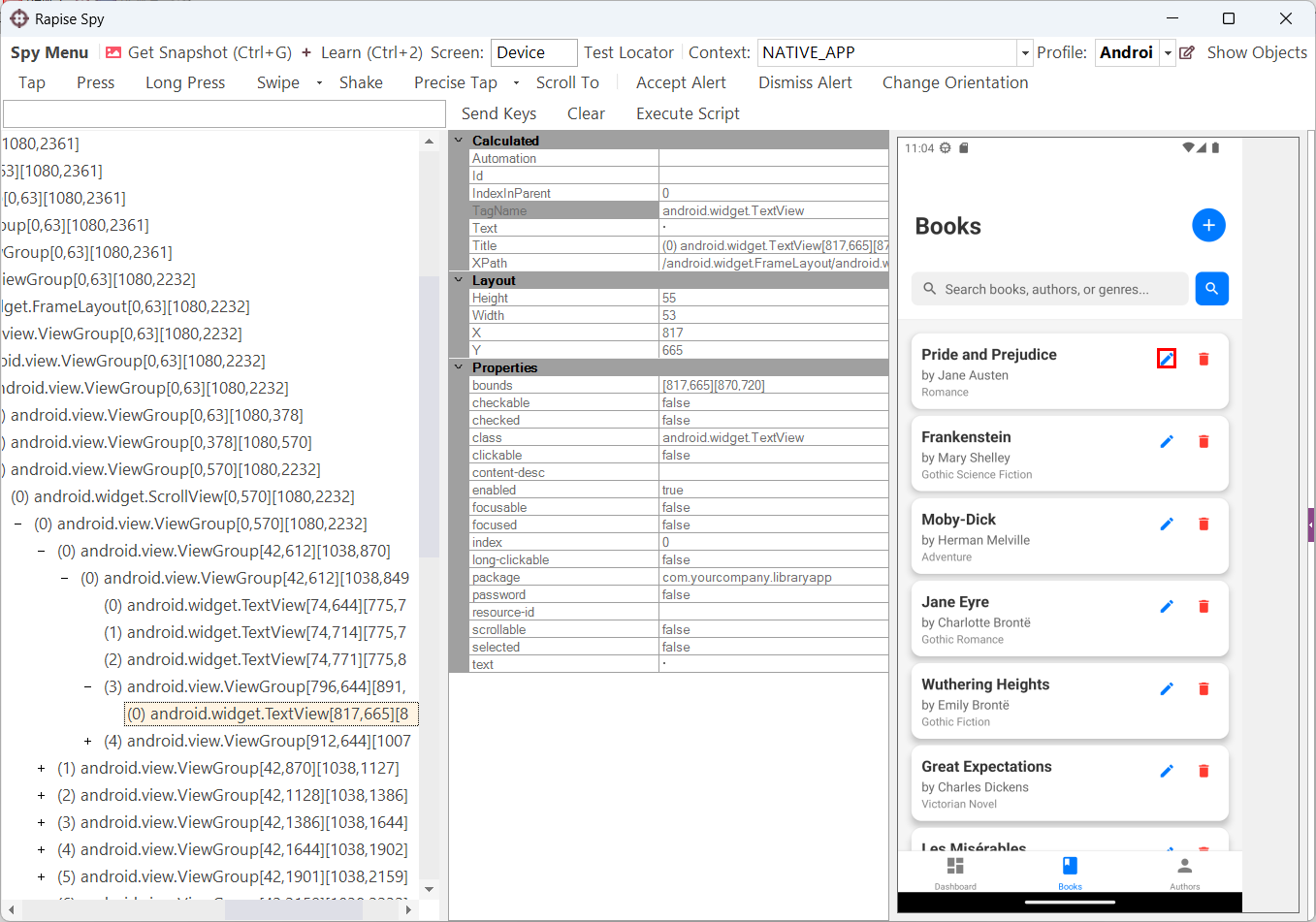
Open the Spy and track the Edit button for a known book (e.g., "Pride and Prejudice").
Construct a relative XPath that finds the Edit button based on the adjacent book title. For example:
//android.widget.TextView[@text='Pride and Prejudice']/../android.view.ViewGroup[1]/android.widget.TextView
Test the XPath in the Spy to ensure it highlights the correct Edit button.
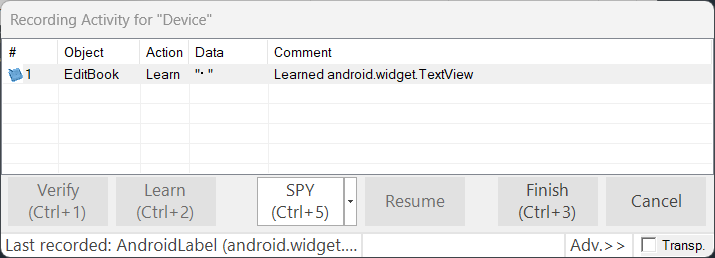
Click Learn and save this object to your Object Tree. Name it something generic, like EditBook.
If you run the script now, it will always click on the Edit button for "Pride and Prejudice". To make it dynamic, we can use either RVL or JavaScript.
Method 1: Using RVL (FormatString and SetLocatorOpts)
You can dynamically replace parts of the XPath using built-in RVL actions.
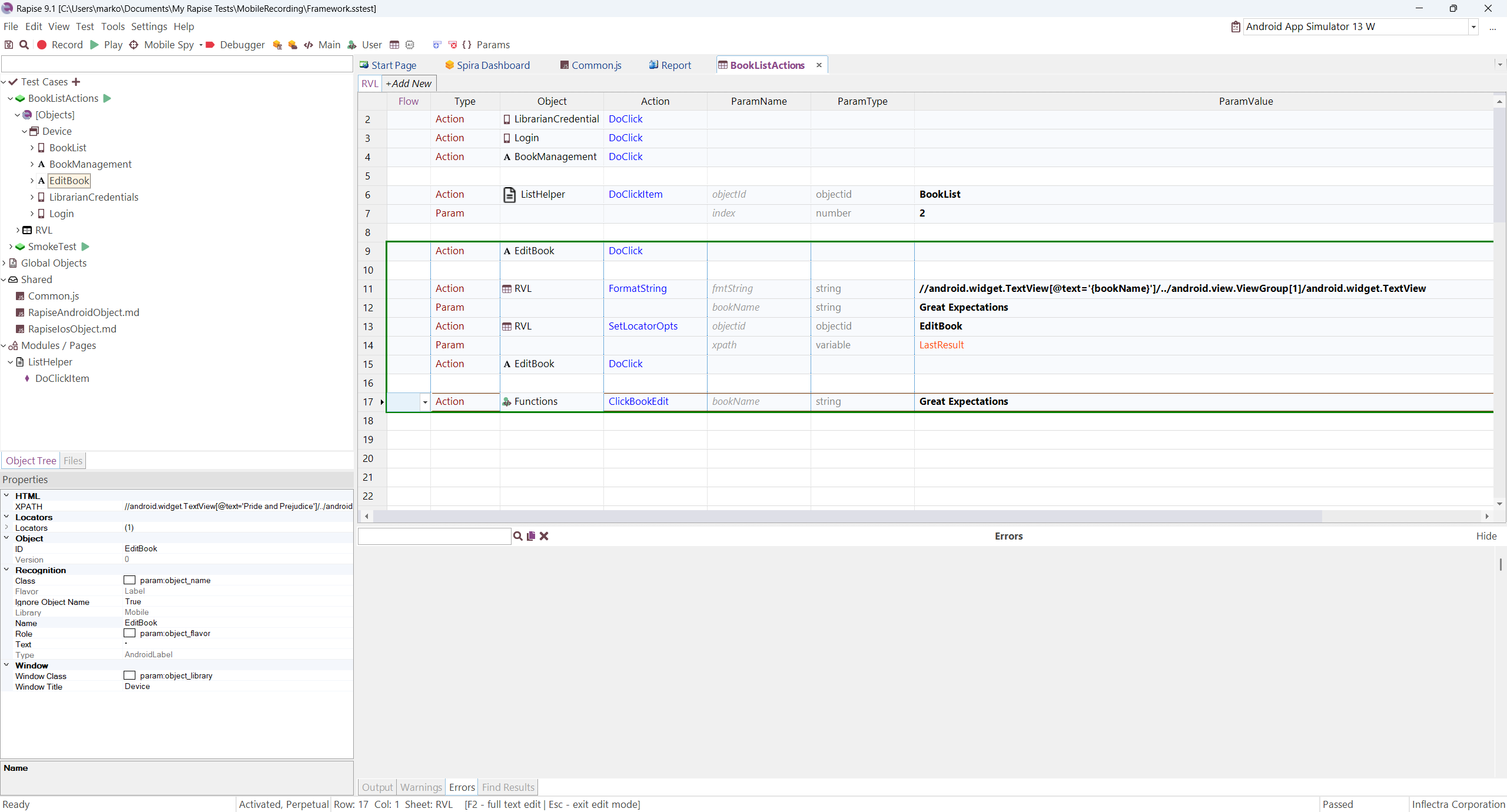
Format the String: Use the RVL.FormatString action to construct your new XPath. Replace the hardcoded book name with a parameter placeholder like {bookName}.
Action: RVL > FormatString
fmtString: //android.widget.TextView[@text='{bookName}']/../android.view.ViewGroup[1]/android.widget.TextView
Param: bookName (Type: string, Value: Great Expectations)
Update the Object Locator: Use RVL.SetLocatorOpts to apply this newly formatted string to your learned object.
Perform the Action: Now, execute the click.
Method 2: Using JavaScript (Custom User Function)
If you prefer writing code or want to create a reusable function to call across multiple tests, you can override the object's XPath directly using the SeS() function in JavaScript.
Open your User.js file.
Create a custom function that accepts the variable (e.g., bookName) as an argument.
Concatenate the string to build the dynamic XPath.
Pass the new XPath into the SeS function's options object.
JavaScript Example:
function ClickBookEdit(/**string*/ bookName)
{
    // 1. Build the dynamic XPath using the provided parameter
    var editButtonXPath = "//android.widget.TextView[@text='" + bookName + "']/../android.view.ViewGroup[1]/android.widget.TextView";

    // 2. Fetch the learned mobile object and override its XPath locator temporarily
    var editButton = SeS("EditBook", {xpath: editButtonXPath});

    // 3. Perform the click
    editButton.DoClick();
}
Once saved, you can call this custom function directly from your RVL script:
Both approaches ensure your automated mobile tests remain robust and capable of interacting with dynamically generated elements and changing test data.