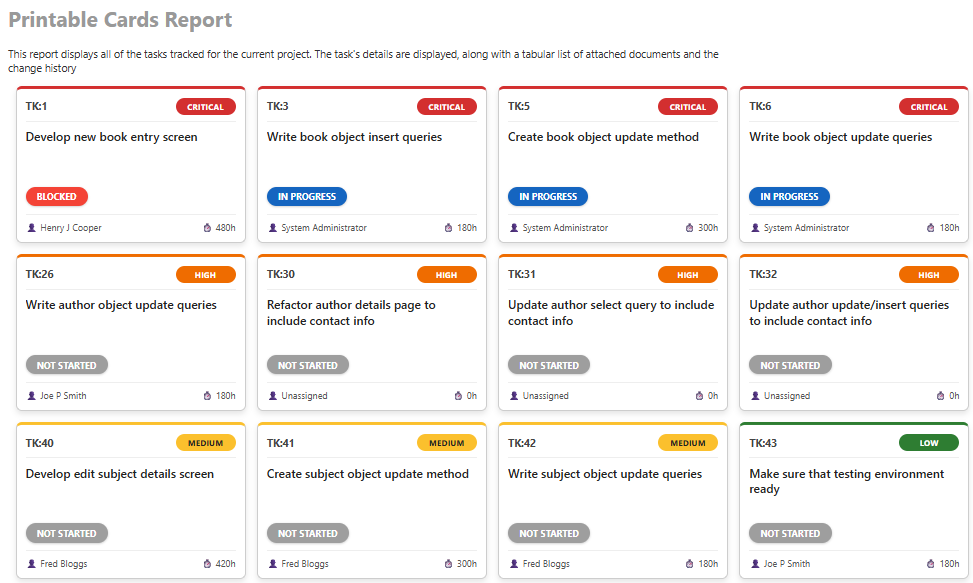
Create a report:
This article assumes you are familiar with the basics of writing custom reports in Spira.
In this example we will be using a custom report with a custom ESQL section.
To create the report you need to:
- Log in to SpiraTeam as a Report Administrator.
- Go to Administration-> System-> Edit Reports.
- Click Create New Report.
- Give it a meaningful name like "Printable Task Cards"
- You can optionally change the category to Task Reporting, for easier navigation
- Select HTML (Standard) as one of the output formats
SQL Query:
- In the report configuration, click on Custom Section.
- Paste the following Entity SQL into the query box:

select
  T.TASK_ID, T.NAME, T.OWNER_NAME, T.TASK_STATUS_NAME AS STATUS, T.TASK_PRIORITY_NAME as PRIORITY_NAME,
  CASE
    WHEN T.ESTIMATED_EFFORT IS NULL THEN 0
    ELSE T.ESTIMATED_EFFORT
  END as ESTIMATED_EFFORT
from SpiraTestEntities.R_Tasks as T
where T.PROJECT_ID = ${ProjectId} and T.TASK_STATUS_NAME <> 'Completed'
- Click Save.
Query explanation:
SELECT statement is querying all necessary columns that we need to see in this report. The number of queried columns can be changed. To see the full table structure please refer to the available custom report views.
CASE .. WHEN block handles NULL effort using CASE since ISNULL is not supported in ESQL.
WHERE filters the currently active product and all tasks that status is other than 'Completed' (which can be modified upon need).
XSLT Template:
If you will click on Generate Default Template button then, you will get a plain report with a table of data pulled.
What we need is to change the basic visual layout, with CSS to create the "card" look and XSLT logic to assign colors based on the priority text.
For that, copy and paste the XSLT into the Template box:
<?xml version="1.0" encoding="utf-8"?>
<xsl:stylesheet version="1.0" xmlns:xsl="http://www.w3.org/1999/XSL/Transform" xmlns:msxsl="urn:schemas-microsoft-com:xslt" exclude-result-prefixes="msxsl">
  <xsl:template match="/RESULTS">
    <style>
      <![CDATA[
      body {
        font-family: 'Segoe UI', Tahoma, Geneva, Verdana, sans-serif;
        background-color: #fff;
        -webkit-print-color-adjust: exact;
        print-color-adjust: exact;
      }
      .card-container {
        display: flex;
        flex-wrap: wrap;
        gap: 15px;
        padding: 10px;
      }
      /* --- CARD STYLE --- */
      .card {
        width: 280px;
        height: 180px;
        border-radius: 8px;
        padding: 12px;
        display: flex;
        flex-direction: column;
        justify-content: space-between;
        background-color: #fff;
        border: 1px solid #ccc;
        box-shadow: 0 4px 8px rgba(0,0,0,0.1);
        page-break-inside: avoid;
        break-inside: avoid;
      }
      /* --- PRIORITY BADGE --- */
      .priority-badge {
        font-size: 0.8em;
        padding: 4px 10px;
        border-radius: 12px;
        color: white;
        font-weight: bold;
        text-transform: uppercase;
        background-color: #777;
        min-width: 60px;
        text-align: center;
        display: inline-block;
      }
      div[class*="Critical"] .priority-badge { background-color: #d32f2f !important; }
      div[class*="Critical"] { border-top: 5px solid #d32f2f; }

      div[class*="High"] .priority-badge { background-color: #ef6c00 !important; }
      div[class*="High"] { border-top: 5px solid #ef6c00; }

      div[class*="Medium"] .priority-badge { background-color: #fbc02d !important; color: #222 !important; }
      div[class*="Medium"] { border-top: 5px solid #fbc02d; }

      div[class*="Low"] .priority-badge { background-color: #2e7d32 !important; }
      div[class*="Low"] { border-top: 5px solid #2e7d32; }

      /* --- LAYOUT --- */
      .card-top {
        display: flex;
        justify-content: space-between;
        align-items: center;
        margin-bottom: 10px;
        border-bottom: 1px solid #eee;
        padding-bottom: 8px;
      }
      .task-id { font-weight: bold; color: #444; }
      .card-title {
        font-size: 16px; font-weight: 600; color: #222;
        flex-grow: 1; overflow: hidden; line-height: 1.3;
      }
      .card-bottom {
        display: flex; justify-content: space-between;
        font-size: 12px; color: #555;
        border-top: 1px solid #eee; padding-top: 8px;
      }
      .owner-name::before { content: '👤 '; }
      .effort::before { content: '⏱️ '; }

      /* --- STATUS BADGE --- */
      .status-container {
        text-align: left;
        margin: 10px 0;
      }
      .status-badge {
        display: inline-block;
        padding: 5px 15px;
        border-radius: 15px;
        font-size: 12px;
        font-weight: bold;
        color: white;
        box-shadow: 0 1px 3px rgba(0,0,0,0.2);
      }
      ]]>
    </style>
    <div class="card-container">
      <xsl:for-each select="ROW">
        <div class="card {PRIORITY_NAME}">

          <div class="card-top">
            <span class="task-id">TK:<xsl:value-of select="TASK_ID"/></span>
            <span class="priority-badge">
                <xsl:choose>
                    <xsl:when test="contains(PRIORITY_NAME, '-')">
                        <xsl:value-of select="normalize-space(substring-after(PRIORITY_NAME, '-'))"/>
                    </xsl:when>
                    <xsl:otherwise>
                        <xsl:value-of select="PRIORITY_NAME"/>
                    </xsl:otherwise>
                </xsl:choose>
            </span>
          </div>

          <div class="card-title">
            <xsl:value-of select="NAME"/>
          </div>

          <div class="status-container">
             <span class="status-badge">
                <xsl:attribute name="style">
                   <xsl:text>background-color: </xsl:text>
                   <xsl:choose>
                      <xsl:when test="normalize-space(STATUS) = 'Completed'">#4caf50;</xsl:when>
                      <xsl:when test="normalize-space(STATUS) = 'In Progress'">#1565c0;</xsl:when>
                      <xsl:when test="normalize-space(STATUS) = 'Blocked'">#f44336;</xsl:when>
                      <xsl:when test="normalize-space(STATUS) = 'Deferred'">#ff9800;</xsl:when>
                      <xsl:when test="normalize-space(STATUS) = 'Not Started'">#9e9e9e;</xsl:when>
                      <xsl:otherwise>#777777;</xsl:otherwise>
                   </xsl:choose>
                </xsl:attribute>
                <xsl:value-of select="STATUS"/>
             </span>
          </div>

          <div class="card-bottom">
            <span class="owner-name">
                <xsl:choose>
                    <xsl:when test="OWNER_NAME != ''">
                    <xsl:value-of select="OWNER_NAME"/></xsl:when>
                    <xsl:otherwise>Unassigned</xsl:otherwise>
                </xsl:choose>
            </span>
            <span class="effort">
           <xsl:value-of select="ESTIMATED_EFFORT"/>h</span>
          </div>

        </div>
      </xsl:for-each>
    </div>
  </xsl:template>
</xsl:stylesheet>
Click Save twice and report is now ready to use.
To display the styles properly run the report in HTML format: press Ctrl+P (or Cmd+P) to open the print dialog.
Before printing make sure that Background Graphics is checked in "More Settings" since this code includes specific CSS commands to force this, but older browsers may still require the manual check.
You should be able to get something like this after generating the report: