Automating scenarios that involve One-Time Passwords (OTPs) sent via SMS requires your testing tool to switch seamlessly between your application under test and the device's native messaging application. In Rapise, you can achieve this on Android using Appium's ActivateApp action combined with a simple regular expression to extract the code.
Prerequisites
A configured Android Mobile Profile in Rapise.
The default SMS app on the device should be Google Messages (com.google.android.apps.messaging).
The Application Under Test (in this example, a demo app with the package ID com.yourcompany.libraryapp).
Step 1: Add the Extraction Function to Common.js
SMS messages typically contain text alongside the code (e.g., "Your login code is 335033"). We need a JavaScript function to strip away the text and grab only the digits.
Open your Common.js file in Rapise and paste the following function (adjust it to your needs if you receive OTP codes in different format):
/**
 * Extracts a numeric code from a given text.
 *
 * @param {string} text - The text from which to extract the code.
 * @returns {string} - The extracted numeric code or an empty string if no code is found.
 */
function ExtractCode(/**string*/ text) {
    // Use a regular expression to find a sequence of digits in the text
    const match = text.match(/\d+/);

    // If a match is found, return the code as a string, otherwise return an empty string
    return match ? match[0] : "";
}
Step 2: Create the RVL Script
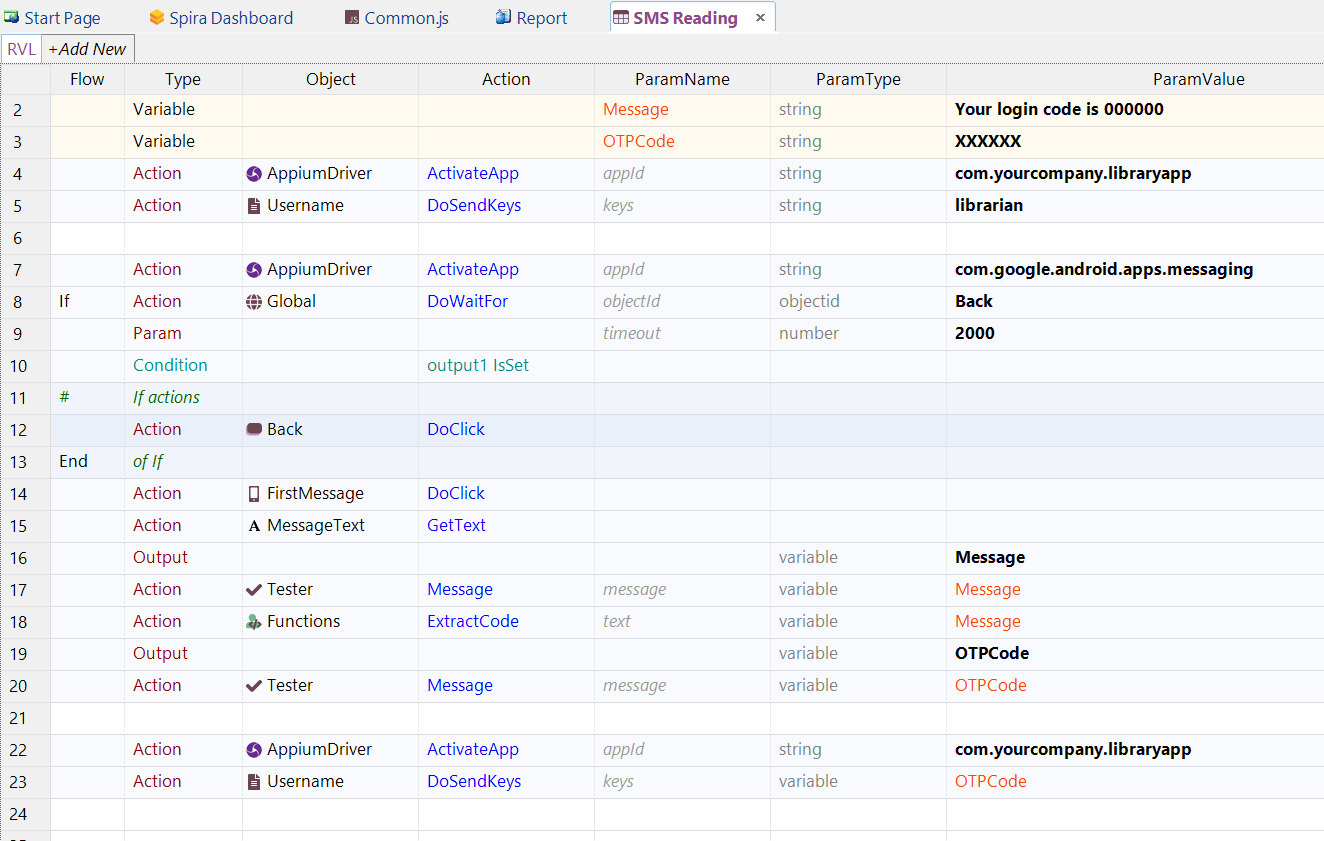
In your RVL spreadsheet, you will define the workflow. You will need to declare two variables at the top of your script to store the raw message and the parsed OTP: Message and OTPCode.
Here is the step-by-step breakdown of the RVL flow:
1. Interact with the Target App
Use AppiumDriver.ActivateApp to ensure your target application (com.yourcompany.libraryapp) is active.
Perform whatever actions are necessary to trigger the SMS (e.g., entering a username and requesting a code).
2. Switch to the Google Messages App
3. Navigate to the Main Message List
Because the Messages app might open directly into a previous conversation, it is best practice to check if a "Back" button is visible and click it to return to the main thread list:
Add an If condition using Global.DoWaitFor for the Back button object (with a short timeout, e.g., 2000ms).
If the button is found (output1 IsSet), use Back.DoClick().
4. Read the Latest SMS
Tap on the most recent conversation using FirstMessage.DoClick().
Read the text from the latest message bubble using MessageText.GetText().
Output this extracted value into your Message variable.
(Optional: Use Tester.Message to print this text to your Rapise report for debugging).
5. Extract the OTP
Call the custom function Functions.ExtractCode passing the Message variable as the text parameter.
Output the result into the OTPCode variable.
(Optional: Print the parsed OTP to the report using Tester.Message).
6. Return to the Target App and Enter the OTP
Switch back to your application using AppiumDriver.ActivateApp with your app's package ID (com.yourcompany.libraryapp).
Use Username.DoSendKeys (or your specific OTP input field object) and pass the OTPCode variable as the text value.
Implementation Details
RVL Sheet
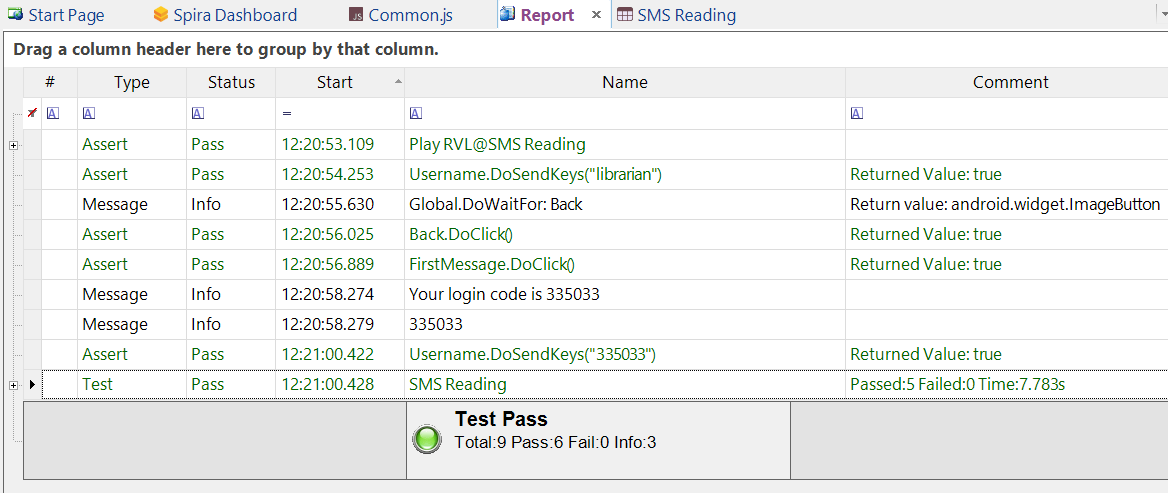
Report Example
Playback Video
/Support/Attachment/170212.aspx
Framework
/Support/Attachment/170215.aspx